
Nothing strikes fear into a local business owner quite like logging into Google and seeing the dreaded red banner: "Your profile has been suspended." Overnight, your calls stop, your map pack ranking vanishes, and your primary source of leads dries up.
Take a deep breath. A suspension is usually not the end of the road. It just means Google's automated systems flagged something on your profile that violates their guidelines. Here is the exact, step-by-step process we use at Design Gandalf to get our clients' profiles reinstated.
Step 1: Stop and Analyze (Do NOT Submit a New Profile)
The biggest mistake business owners make is panicking and immediately trying to create a new profile. Do not do this. Creating duplicate profiles will only further confuse Google and make it harder to reinstate your original, aged profile with all its reviews.
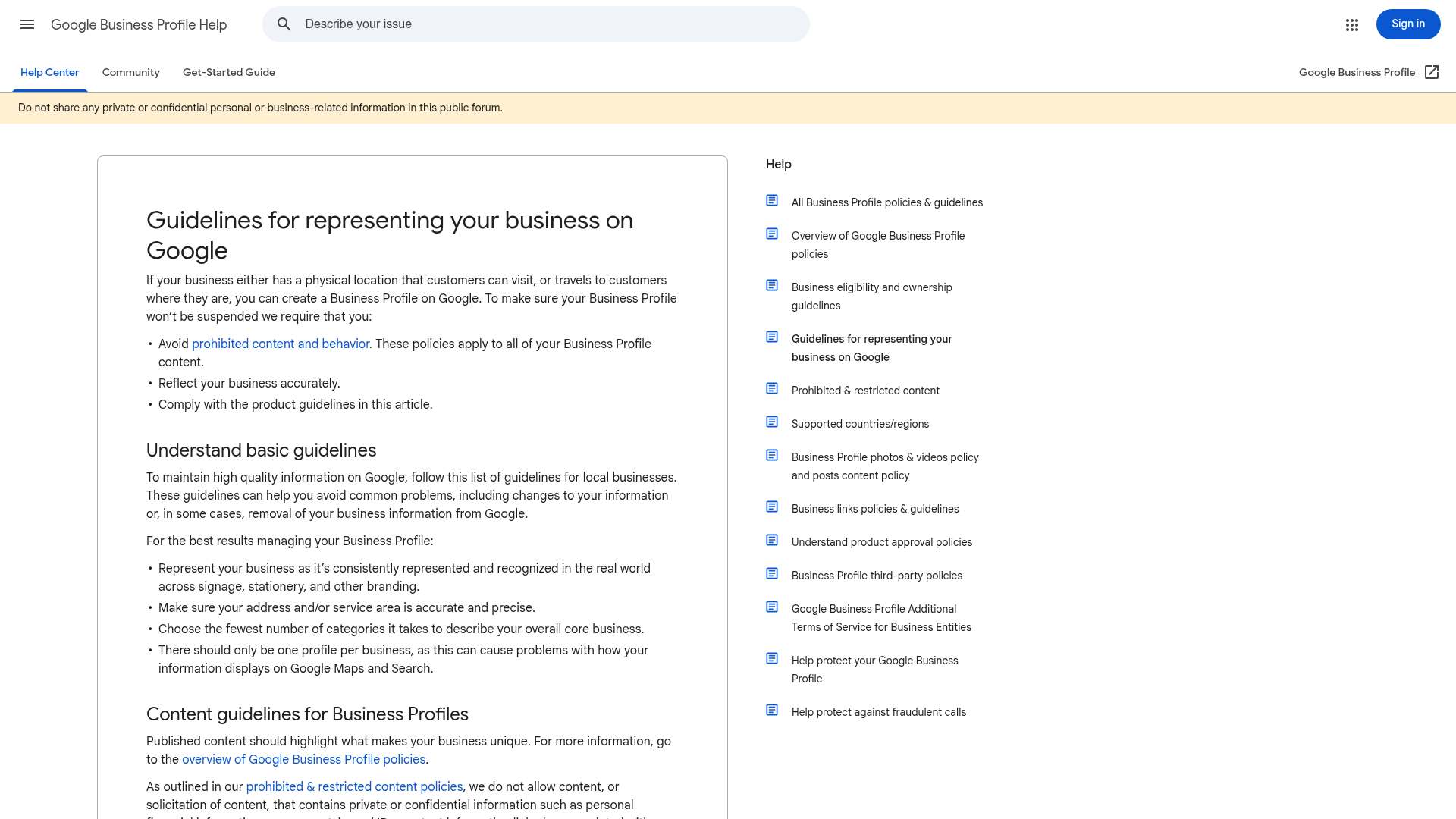
Instead, you need to figure out why you were suspended. Review the Guidelines for representing your business on Google. Common culprits include:
- Keyword stuffing your business name (e.g., "Bob's Plumbing - Emergency Plumber Detroit" instead of just "Bob's Plumbing")
- Using a P.O. Box or virtual office as your address
- Multiple businesses claiming the same address
- Recent rapid changes to your core info (Name, Address, Phone)
Check Your Status
Before proceeding, you can officially check your verification and suspension status using Google's workflow tool:
Check Verification Status →Step 2: Fix the Violations
Once you've identified the likely cause, fix it on your profile. If your name was "Bob's Plumbing - Detroit", change it back to the exact name on your LLC paperwork: "Bob's Plumbing".
Gather your proof. You will need official documentation to prove you are a legitimate business operating at the address on your profile. You should prepare:
- Your official state business registration (LLC/Corp documents)
- A recent utility bill (water, electric, gas) matching the exact business name and address
- Photos of your permanent storefront signage (if you have a physical location)
- Photos of your branded, wrapped work vehicles (if you are a Service Area Business)

Step 3: Submit the Reinstatement Appeal
Once your profile is compliant and you have your documents ready, it's time to appeal. Google has updated their workflow for this.
Use this link to start the official appeal process:
Submit Appeal Workflow →When filling out the form, be incredibly concise. Do not write a novel about how long you've been in business or how much money you are losing. Support agents have seconds to review your case.
"Hello, my profile was suspended. I have reviewed the guidelines and ensured my business name matches my official registration and my address is correct. Attached is my LLC registration and latest utility bill proving my location. Please reinstate my profile."
Step 4: The Waiting Game (And Additional Appeals)
Google typically responds to reinstatement requests within 3 to 7 business days. Do not submit multiple appeals while waiting. This pushes you to the back of the queue.
If your initial appeal is denied, or if you need to provide additional context after a denial, you can use the Local Appeals contact form. Be warned: the bar for proof is much higher on a second appeal.
If your first appeal failed, use the secondary contact form:
Additional Appeal Form →